Disable or Enable a Job
Job groups may contain individual jobs that shouldn't run when you run the entire job group. Some job groups also contain jobs that you can optionally run separately from the rest of the job group. You can disable or enable individual jobs at the job group or job level. Disabled jobs don't execute when you run the parent job group.
If you enable the role based access feature, the assigned role limits the ability to enable and disable jobs. See the Role Based Access topic for additional information.
Disable a Job
You can disable jobs from the Jobs tree. You can't run a disabled job manually, through a scheduled task, or as part of job group execution. To disable a job:
Step 1 – Select a job group or job.
When you disable jobs at the job group level, all jobs in the job group become disabled, but the job group itself remains enabled. Any additional jobs added to that job group later are enabled by default.
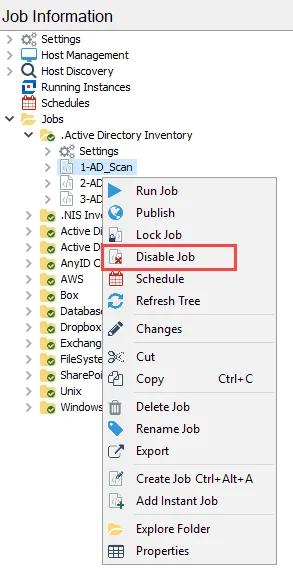
Step 2 – Right-click the job group or job and select Disable Jobs from the menu.

The job is now disabled. If you selected a job group, all the jobs in the group are now disabled. Disabled jobs are grayed out, and a red cross is displayed in front of the job.
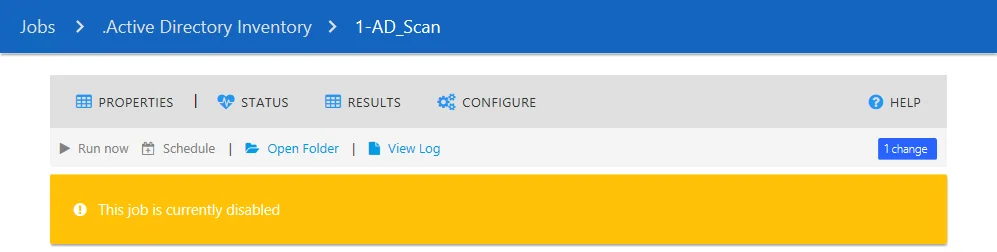
A yellow banner also notifies users that a job is disabled in the Job’s Description page.
Additionally, if you run a disabled job, a warning message appears in the Messages table stating:
[UserName] requested [JobName] to run but it is in a disabled state. Job statistics also don't
display on the job’s description page.
Enable a Job
You can enable disabled jobs from the Jobs tree.
Step 1 – Select the disabled job. If multiple jobs in a job group are disabled, select the job group to enable all of the disabled jobs.
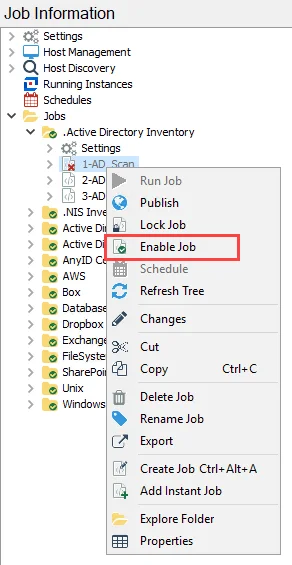
Step 2 – Right-click the job group or job and select Enable Jobs from the menu.
The job is now enabled. If you selected a job group, all the jobs in the group are now enabled.