Reports Node
The Reports node is for configuring reports to generate during job execution.
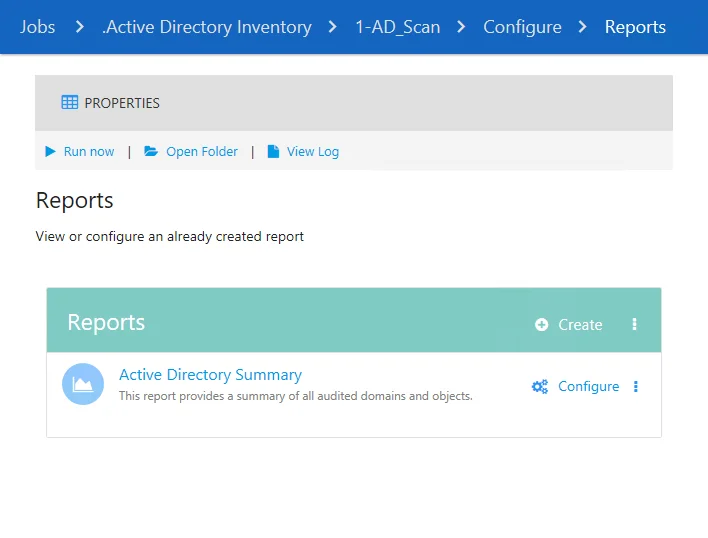
The Reports view lists any reports you've configured for the selected job and options related to configuring reports. The options at the top of the Reports view are:
- Properties – Opens the Job Properties page for the job that the report is for
- Run Now – Runs the selected job that the report is for
- Open Folder – Opens the Report’s folder location with supporting files in the Windows Explorer
- View Log – Opens the log for the job that the report is for

The Reports table contains all of the configured reports for the job. The header row of the table contains the following options for adding reports to the table:
-
Create – Creates a new report for the selected job
- See the Creating a Report topic for additional information
-
Paste – Paste a cut or copied report into the selected job
- You can access the paste option from the vertical ellipsis menu of the header row of the Reports table

Clicking on the name of a report opens it in the Results node. Clicking Configure next to a report's name opens the Report Configuration wizard for the report, see the Report Configuration Wizard topic for additional information. Additional options are available from the vertical ellipsis menu on a reports row:
- Generate – Generates the report
- Copy – Copies the report to the clipboard
- Delete – Deletes the report
After you generate a report, you can view it in several locations depending on the configuration. You can also copy report configurations to other reports to generate preferred outputs for alternate jobs. However, you can view all generated reports in the job’s Results node.
See the Reporting topic for additional information.