Queries Node
The Queries node uses a Enterprise Auditor data collector to run scans against the targeted hosts. Different data collectors are designed for different types of collection. The Connection Profile associated with the target hosts must have a sufficient level of rights for the selected data collector. See the Permissions by Data Collector (Matrix) topic for a chart with recommended permissions per data collector.
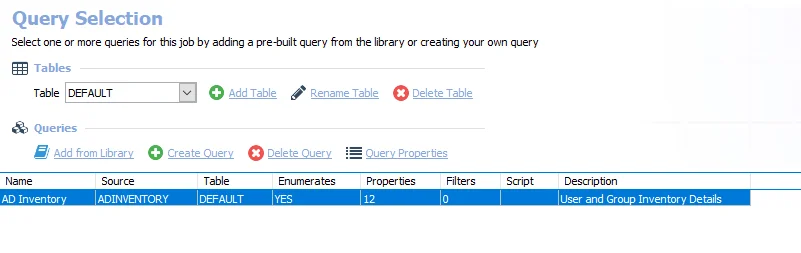
The Query Selection view lists all queries for the selected job. Though a job can have multiple queries, avoid using more than one when possible. The listed information includes:
- Name – Name of the query (as provided by the creator of the query)
- Source – Name of the Enterprise Auditor data collector
- Table – Name of the Native Data table
- Enumerates – Whether the data collector will return enumerated data, or multiple lines of
data per target host
- If Yes, only one query can write to a single table
- If No, then multiple related queries can write to a single table
- Properties – Number of the properties to be returned
- Filters – Number of in-line filters applied to the data being returned by the query
- Script – Whether a VB Script was added to the query
- If Yes, a VB Script was added to query execution
- If No, a VB Script wasn't added to query execution
- Description – Description of the query (as provided by the creator of the query)
Tables
Add and configure native data tables through the Tables section in the Query Selection view.

The Tables section at the top has three options:
-
Add Table – Adds an additional native data table and associated query to the selected job
-
Rename Table – Opens the Rename Table window for changing the native data table name
-
Delete Table – Deletes the selected table from the list, all associated query tasks, and the database table if it has already been created. This action requires confirmation.
warningDon't delete the last table in a job’s Query Selection view. Doing so will also delete the Messages table. To delete the last table, delete the job.
Queries
The Queries section is where you can edit the job’s preconfigured queries and add new queries.

The Queries section has four options and includes the list of queries for the selected job:
- Add from Library – Opens the Libraries window to select preconfigured data collection queries. See the Add Query from Library topic for additional information.
- Create Query – Opens the Query Properties window for creating and configuring queries
- Delete Query – Deletes the selected query from the list. This action requires confirmation.
- Query Properties – Opens the Query Properties window for the selected query
- This option is used for query modifications
- See the Create or Modify a Query topic for additional information
- See the topics for the individual Data Collectors for additional information
Right-click Menu
The Query Selection view also has its own right-click menu for taking action on the queries, tables, or the job.
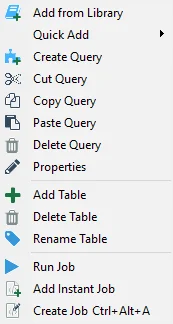
The options in the Queries node right-click menu are:
- Add from Library – Opens the Libraries window
- Quick Add – Quickly add a new query from a list of non-configured data collector queries
- Create Query – Creates a new query to be configured
- Cut Query – Cuts selected query
- Copy Query – Copies selected query
- Paste Query – Pastes a cut or copied query to the selected location
- Delete Query – Deletes a selected query
- Properties – Opens the Query Properties window
- Add Table – Adds a Native Data table to the selected query
- Delete Table – Deletes the selected table
- Rename Table – Opens the Rename Table window
- Run Job – Starts job execution for the selected job
- Add Instant Job – Opens the Instant Job Wizard
- Create Job (Ctrl + Alt + A) – Creates a new job at the same location as the selected job
Host List
Jobs with configured queries require you to assign a host list. You can do this at either the Job Group or Job level. Whichever location you use to set the host list for query execution should also be the location where you assign the Connection Profile. See the Job Properties topic for additional information.
- Job Groups
- Host List Assigned – [Job Group] > Settings > Host Lists Assignment. See the Host Lists Assignment topic for additional information.
- Connection Profile Selected – [Job Group] > Settings > Connection. See the Connection Node topic for additional information.
- Job Level
- Host List Assigned – [Job] > Configure > Hosts. See the Hosts Node topic for additional information.
- Connection Profile Selected – Connection tab of the Job’s Properties Window. See the Connection Tab topic for additional information.