Configure the Customizable Parameters in an Analysis Task
You can customize the parameters, which appear in a section at the bottom of the SQL Script Editor. To customize an analysis task’s parameters:
Step 1 – Navigate to the Job’s Configure node and select Analysis.
Step 2 – In the Analysis Selection view, select the analysis task you want and click Analysis Configuration. The SQL Script Editor opens.
Step 3 – At the top of the SQL Script Editor, select Parameters.
The image shown is a generic example. Table names and customizable parameters will change based on the Job.
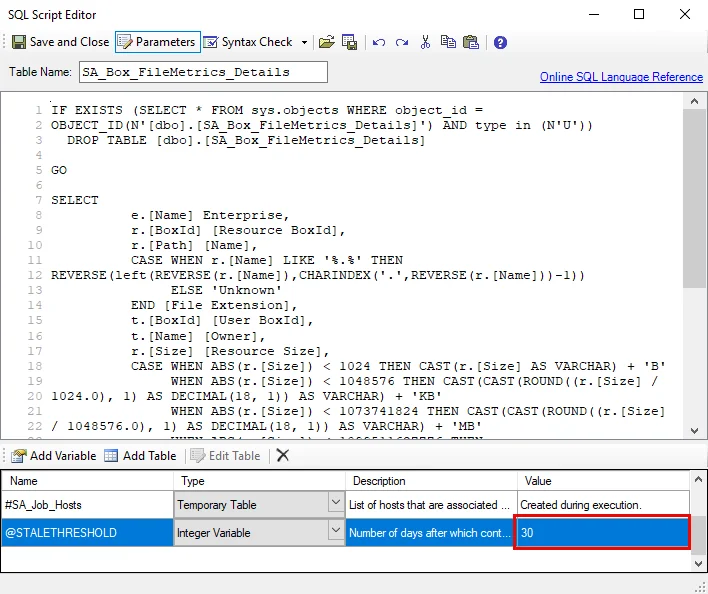
Step 4 – In the parameters section at the bottom of the editor, find the Value column.
Don't change any parameters where the Value states Created during execution.
- Double-click the customizable value and change as desired
Step 5 – Click Save and Close to finalize the customization and close the SQL Script Editor.
Repeat the steps as needed to customize analysis parameters.
See the SQLscripting Analysis Module topic for additional information.