SPAA: DLP Audit Settings
Use the DLP Audit Settings page to configure sensitive data discovery settings. It's a wizard page for the category of Scan For Sensitive Content.
Don't change scans in a way that results in a subsequent scan returning less data (for example, scanning fewer web applications, scanning fewer site collections, or using a shallower depth scan). Enterprise Auditor marks resources not included in a subsequent scan as deleted in the Tier 2 database and subsequently removes them from the Tier 1 database.
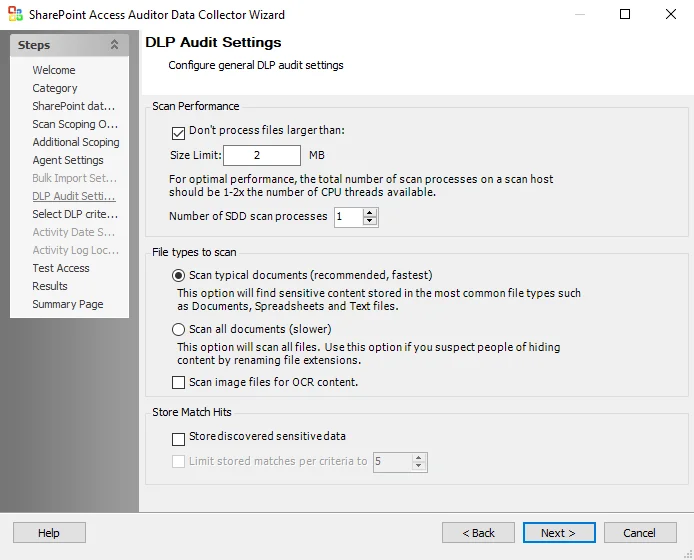
Configure the Scan Performance options:
- Don’t process files larger than: Size Limit [number] MB – Limits the files scanned for sensitive content to only files smaller than the specified size. The checkbox is selected by default. The default size is 2 MB.
- Number of SDD scan processes [number] – Increases the number of SDD scanner processes that spawn as part of a scan, increasing parallel scanning. The value shouldn't exceed 2x the number of CPU threads available.
Use the radio buttons to select the File types to scan:
-
Scan typical documents (recommended, fastest) – Scans most common file types
-
Scan all document types (slower) – Scans all file types except those excluded
-
Scan image files for OCR content – Use optical character recognition to scan image files for sensitive data content
noteThe OCR option is intended to work for clear scanned physical documents or documents directly converted to images, with standard fonts. It will not work for scanning photos of documents and may not be able to recognize text on images of credit cards, driver's licenses, or other identity cards.
Use the checkboxes to select to Store Match Hits:
- Store discovered sensitive data – Stores match hits for sensitive data in the SPAA Tier 2 database. If you don't select this option, Enterprise Auditor still reports the match hits for sensitive data but masks the data columns in the database.
- Limit stored matches per criteria to [number] – Available when you select the Store discovered sensitive data checkbox. Limits the number of stored matches per criteria to the specified number.
Remember, the sensitive data discovery options require you to install the Sensitive Data Discovery Add-On on the Enterprise Auditor Console. If you use the SharePoint Agent, you must also install it on the application server that hosts the Central Administration component.