Registry Data Collector
The Registry Data Collector queries the registry and returns keys, key values, and permissions on the keys. The data in the native tables returned by the Registry Data Collector depends on the query configuration. For example, you can configure a query to show only permissions on registry keys in a 32-bit view. You can configure another query to show a listing of all keys and key values in a 64-bit view. You can also use wildcards in query configurations.
The Registry Data Collector is a core component of Enterprise Auditor, and the Active Directory Solution and the Windows Solution both include it as a preconfigured component. While the data collector is available with all Enterprise Auditor license options, these solutions are only available with a special Enterprise Auditor licenses. See the following topics for additional information:
Protocols
- Remote Registry
- RPC
Ports
- TCP 135-139
- Randomly allocated high TCP ports
Permissions
- Member of the Local Administrators group
Registry Query Configuration
The Registry Data Collector is configured through the Registry Browser window.
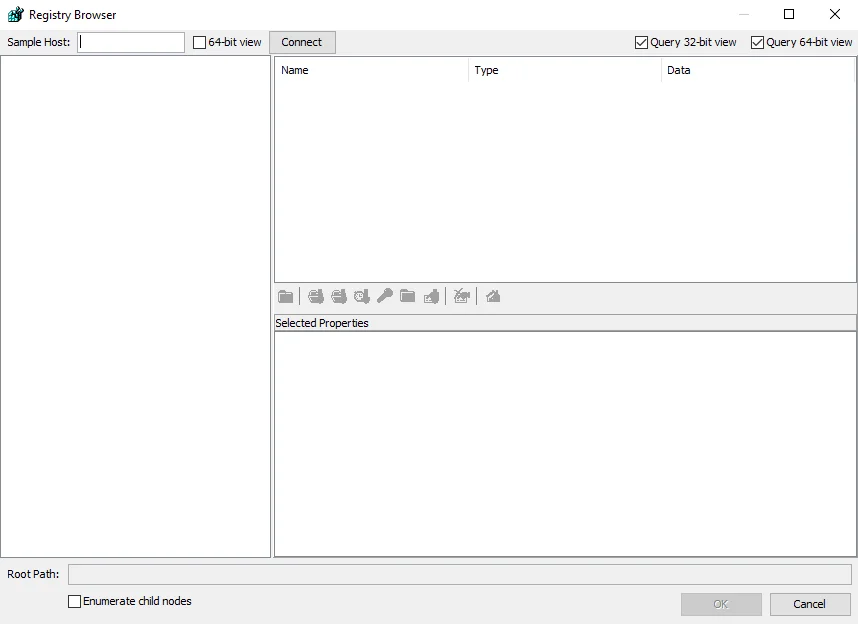
The configurable options are:
- Sample Host – The host to connect to. If you leave this box blank, the connection defaults to the local host.
- 64-bit view – The default view is 32-bit. Select the 64-bit view checkbox to switch to a 64-bit view.
- Connect – Connect to host's registry. If you don't specify a host in the Sample Host box, the connection defaults to the local host's registry.
- Query 32-bit view – Select this checkbox to query the 32-bit view of the registry
- Query 64-bit view – Select this checkbox to query the 64-bit view of the registry
- Name – The key value. Add key values to the Selected Properties list by pressing the ctrl key, selecting the keys to add, and clicking the Add selected value button.
- Type – The key value type
- Data – The key value path
- Root Path – The path to the selected key
- Enumerate child nodes – Select this checkbox to do a recursive search of all child nodes
The button bar provides additional options for selecting keys. See the Button Bar topic for additional information.
Button Bar
The button bar is located right above the Selected Properties window. The button bar enables users to do the following:

| Icon | Name |
|---|---|
 | Select all peer keys for this node |
 | Add name of selected key |
 | Add full path of the selected key |
 | Add last write date/time of selected key |
 | Add security properties for selected key |
 | Enumerate all values for this key |
 | Add selected value |
 | Delete properties from selection |
 | Go to selected key |