PowerShell: Edit Query
The Edit Query page provides a screen to edit the query to execute. Users can import PowerShell script as well as use an input table to create and edit the PowerShell script.
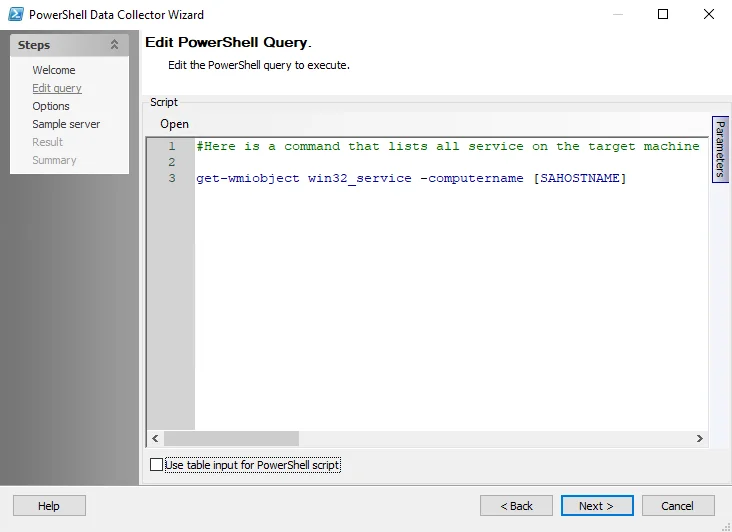
The options on the Edit Query page are:
- Open – Click to import and open a PowerShell script
- Script Editor – Input PowerShell script to use for the configured job
- Parameters – Use the Parameters tab on the right-hand side of the Edit Query page to open the Parameters window. See the Parameters topic for additional information.
- Use table input for PowerShell script – select the checkbox to bring up the Input options for the PowerShell script. See the Input Options topic for additional information.
Parameters
Add, edit, and delete parameters for the PowerShell data collector using the Parameters window.
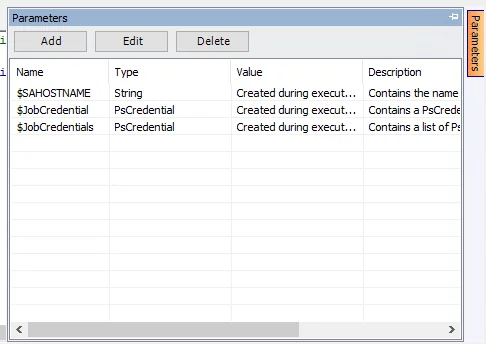
The options in the Parameters Window are:
- Add – Add a parameter by opening the Add/Edit Variable Window. See the Add/Edit Variable Window topic for additional information.
- Edit – Edit the selected parameter by opening the Add/Edit Variable Window. See the Add/Edit Variable Window topic for additional information.
- Delete – Delete a parameter
You can edit or delete only user-created parameters. You can't edit or delete preconfigured parameters.
Add/Edit Variable Window
Use the Add/Edit Variable Window to add and edit parameters for the PowerShell Data Collector.

The options in the Add/Edit Variable window are:
-
Name – Enter or edit the name for the custom parameter
-
Description – (Optional) Enter or edit the description for the custom parameter
-
Type – Select the Type from the dropdown list. The options are:
- String
- List
- Filepath
- Boolean
- Long
- Double
-
Value – Enter or edit the value for the custom parameter
Input Options
When you select the Use table input for PowerShell script option on the Edit Query page, additional options display to define the source for input data.
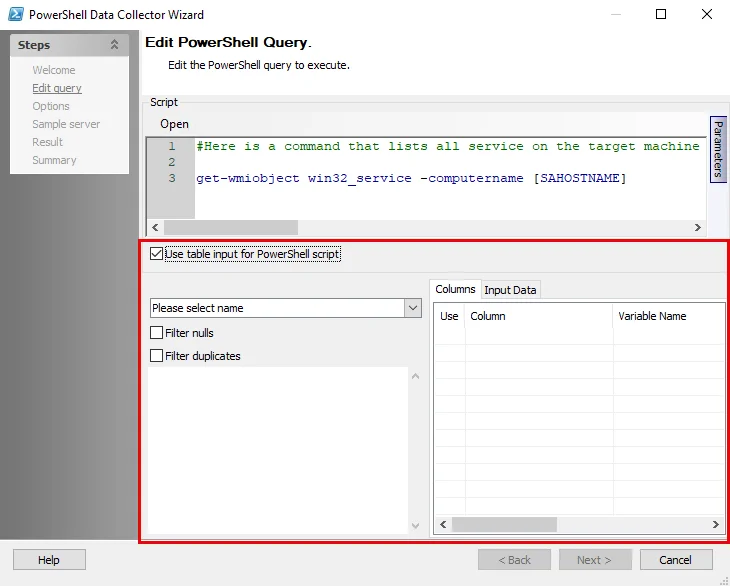
The input options are:
- select name – Select the input table to use from the dropdown menu
- Filter nulls – Excludes values that are null from input
- Filter duplicates – Excludes any values that are duplicate from input
- Text Box – Displays an example of how the input can be used in a PowerShell script
- Columns – Displays the columns in the selected input table. If applicable, select the checkbox to include the column in the input.
- Input Data – Preview how the input data will look in the Input Data tab
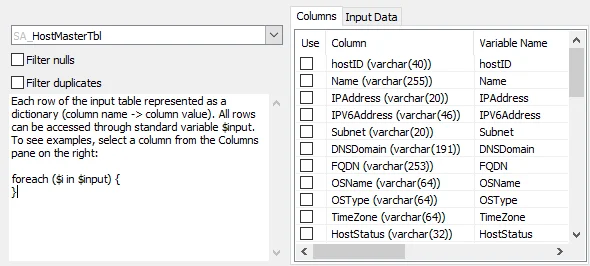
Selecting an input table in the select name dropdown populates the Text Box and the Columns tab with information.