FSAA: Applet Settings
The Applet Settings page configures how the File System Access Audit (FSAA) applet is launched and how it behaves during a scan. It is a wizard page for the categories of:
- File System Access/Permission Auditing Scan
- File System Activity Scan
- Sensitive Data Scan
This wizard page identifies options associated with the scan mode. See the File System Scan Options topic for additional information.
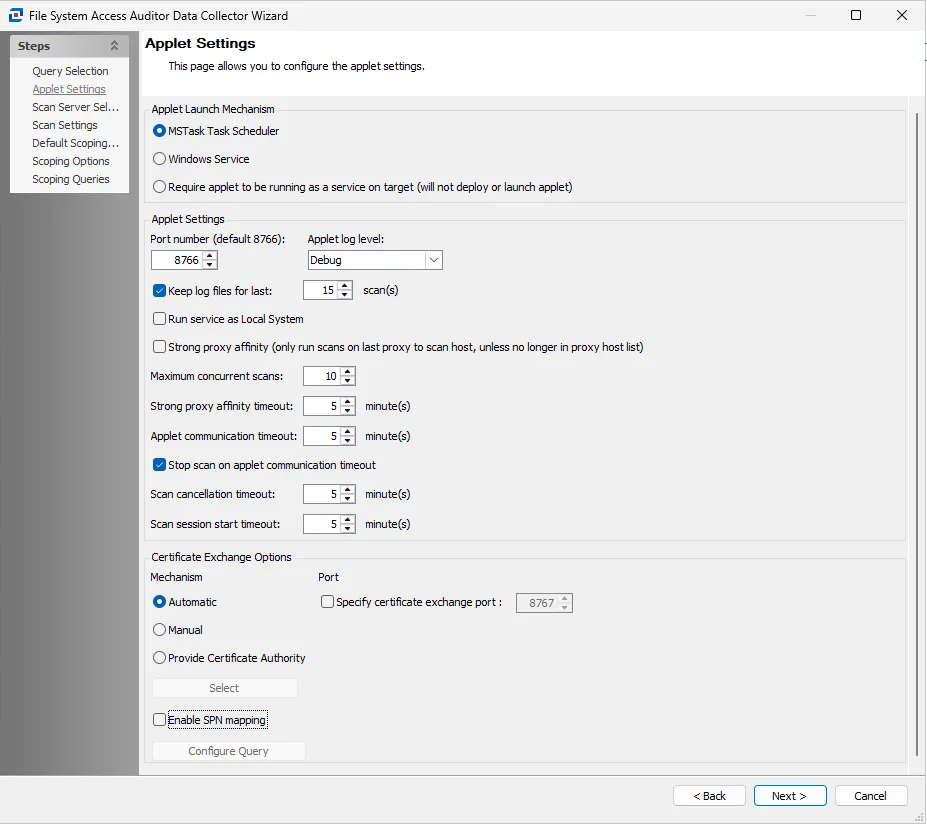
In the Applet Launch Mechanism section, choose one of three radio buttons:
- MSTask Task Scheduler – Creates a scheduled task on the target host that runs the applet
- Windows Service – Automatically installs the FSAA Applet as a proxy service
- The Applet service runs as a Connection Profile credential unless you select the Local System checkbox in the Applet Settings options. Then it runs the service in Local mode.
- Require applet to be running as a service on target (doesn't deploy or launch applet)
- See the File System Proxy Service Installation topic for additional information.
- It requires the
FSAAAppletServer.exeto run as a service on the proxy host to run a successful scan. When you select this radio button, Enterprise Auditor doesn't deploy an applet on the target or proxy machine. Therefore, if the File System Proxy service isn't running, the FSAA scan will fail. - To avoid a failed scan when Enterprise Auditor can't deploy an applet or the File System Proxy service isn't running, the Applet Gathering Settings page contains the Fallback to local mode if applet can’t start option. This option allows the scan to run in local mode when Enterprise Auditor can't deploy an applet or the service isn't running.
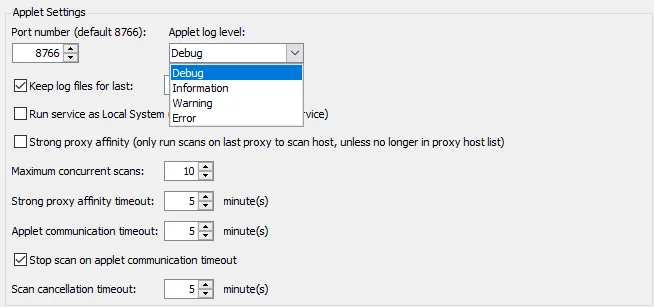
In the Applet Settings section, configure the following options:
- Port number – Default port number is 8766
- See Custom Parameters for File System Proxy Service topic for additional information.
- Applet Log level – The type of log created on the target host. Checking the box to Enable Logging
enables the Applet log level dropdown menu. The Set To Default button resets the log level to
Information.
- Debug – Most verbose logging method, records everything that happens while the applet is processing
- Information – Records the steps the applet takes while processing as well as errors and warnings
- Warning – Record when the applet encounters both errors and warnings while processing
- Error – Least verbose logging method, only records when the applet encounters an error while processing
- Keep log files for last [number] scans – Data retention period. The default is 15.
- Run service as Local System (only applies to Windows Service)
- When you select this checkbox, Enterprise Auditor deploys the applet to run as a service on the target host. Enterprise Auditor uses the credentials in the Connection Profile to deploy and run the service unless you select System Default as the Connection Profile.
- This option is active when you select the Windows Service radio button in the Applet Launch Mechanism section
- Strong proxy affinity (only run scans on last proxy to scan host, unless no longer in proxy host
list)
- This is an optional setting when using proxy architecture
- If you select this checkbox and a given proxy previously scanned a host, only that same proxy will rescan it. If that proxy is unreachable for any reason and Enterprise Auditor can't make a connection, Enterprise Auditor will not try another proxy on the host list and will fail to scan that host. However, if that proxy is no longer on the host list, it will choose another proxy on the list and rescan.
- If unchecked, Enterprise Auditor still considers proxy affinity, but if the assigned proxy is unreachable it chooses a different proxy to scan the host instead of failing the scan
- If a proxy server has not yet scanned a host, the data collector should choose the least loaded proxy at that time. After scanning that host, the data collector will follow the proxy affinity logic described earlier.
- Maximum concurrent scans [number] – This option dictates a set limit to the number of simultaneous
scans allowed to run on a proxy host regardless of max threads set on the job
- For example, if there are two proxy servers with max concurrent scans set to ten per proxy and one proxy is offline, the remaining proxy should never exceed the value set in the query configuration for this option, even if the job is configured with 20 threads
- Strong proxy affinity timeout [number] minutes – This option determines the time a host waits, while the proxy server is busy, before it enters the job engine queue
- Applet communication timeout: [number] minutes – This option determines the length of time (in
minutes) the Enterprise Auditor Console attempts to reach the proxy before giving up. Depending on
the job configuration, the data collector behaves in one of three ways after the timeout value has
been exceeded:
- If a communication timeout is reached and the Stop scan on applet communication timeout option is unchecked, the scan continues running. When the proxy is available again, the data collector gets the database files on the next scan of that host. It will either bring the database files back, if the scan has finished, or display the current state of the scan in a Running Job node if it is still running.
- If the communication timeout is reached and the Stop scan on applet communication timeout option is checked, Enterprise Auditor automatically suspends or cancels the remote scan. If the Restart incomplete scans after (0 always restarts) [number] days option or the Rescan unimported hosts after (0 always rescans) [number] days option on the Applet Gathering Settings page are both set to zero or unchecked, the scan cancels.
- If either of these options on the Applet Gathering Settings page are checked with values higher than zero, the scan is suspended after the communication timeout value has been exceeded
- Scan cancellation timeout: [number] minutes – When checked, this option will timeout the applet if there is an attempt to pause the scan and the applet doesn't respond

In the Certificate Exchange Options section, configure the following options:
-
Mechanism – Select one of the following options:
-
Automatic – The FSAA Data Collector handles certificate exchange automatically. This is the default option.
-
Manual – The FSSA Data Collector and applet server expect all certificates to be valid and in their respective stores beforehand. See the FSAA Manual Certificate Configuration topic for additional information.
noteIf the FSAA Data Collector and the applet server are on separate domains without a trust, you must use this option.
-
Enables the Select button. Use this button to upload an existing certificate.
-
-
Port – Select the checkbox to specify the port number for certificate exchange. The Default port number is 8767.
-
Enable SPN mapping – Provide a custom Service Principal Name (SPN) per applet host when the automatically generated SPN isn't valid (for example, when the applet host sits behind a proxy). See the FSAA: SPN Mapping topic for additional information.
See the FSAA Applet Certificate Management Overview topic for additional information.