ExchangePS: Scope by Public Folders
Use the Scope by Public Folders page to define specific public folders to search. You enable this page by selecting the Scope by Public Folder option on the Scope page. See the ExchangePS: Scope topic for additional information.
Configure the Scope option using the dropdown. The available options are:
- Selected Public Folder
- Selected Table
The selected option changes how the data collector identifies public folders for scoping.
Selected Public Folder
The Selected Public Folders scope option retrieves all public folders in the Exchange organization, populating them in the Available list.
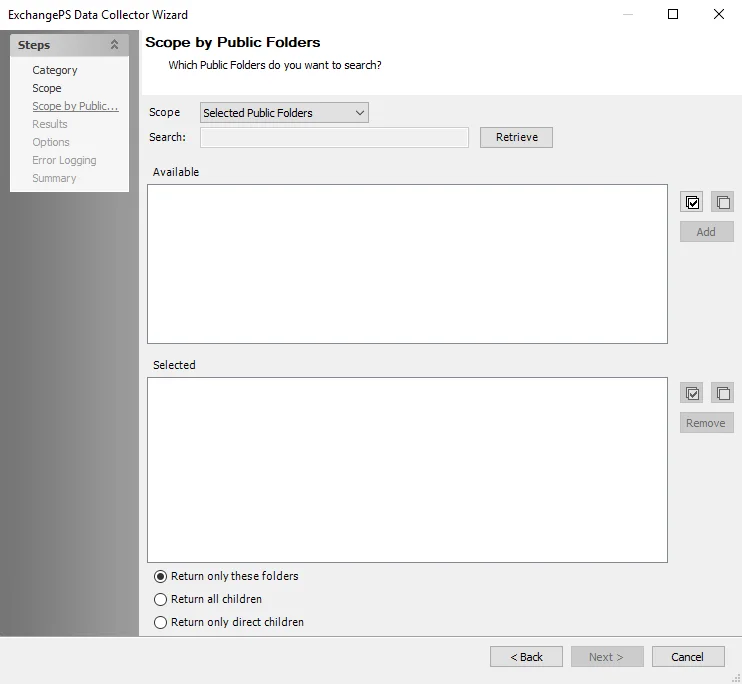
The Search feature filters this list. Select the public folders you want and click Add. The wizard adds the selected public folders to the Selected list. Use the Remove option to delete selected public folders from the list. Use the Select All or Deselect All buttons for quick selection. Additional scoping options include:
- Return only these folders – Audits only the selected public folders
- Return all children – Audits the selected public folders and all sub-folders
- Return only direct children – Audits the selected public folders and one folder deeper
Selected Table
The Selected Table scope option populates the Available tables list with tables from the Enterprise Auditor database.
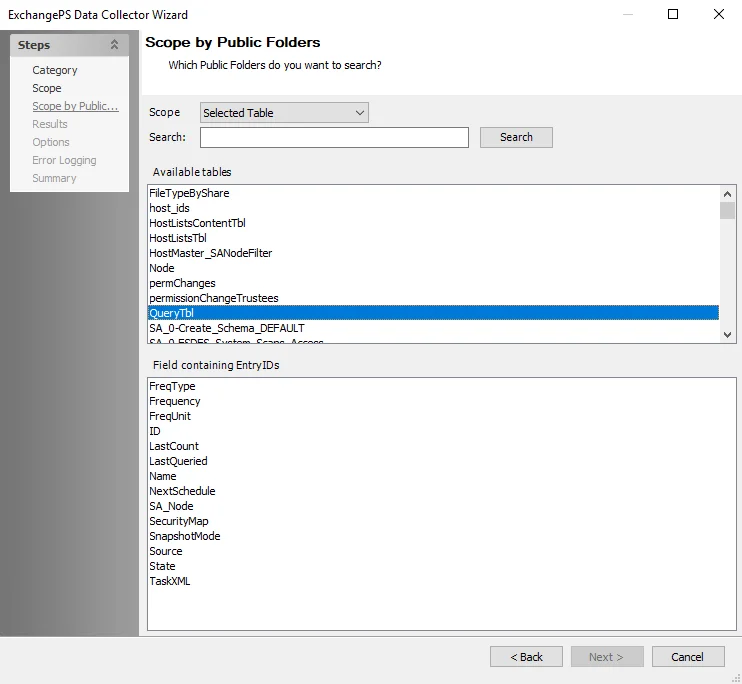
The Search feature filters this list. Select the table that houses the list of public folders to scope this query to. The Field containing EntryIDs list populates with columns from the selected table. Select the appropriate column from the list.