PowerShell Action: Script
Use the Script page to input the PowerShell script that performs the requested action. Built-in variables are available for use in the script.
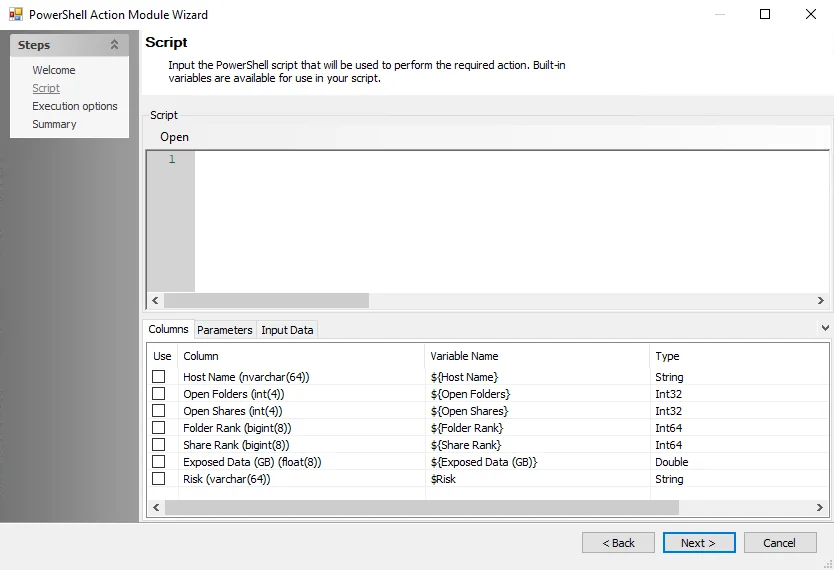
You can enter the PowerShell script manually into the Script window at the top of the Script page. To open a pre-existing PowerShell script from a file, click Open to select the script file.
Use the three tabs at the bottom of the page to configure the PowerShell action module further. The tabs are:
Columns
Use the Columns tab to select the available columns.
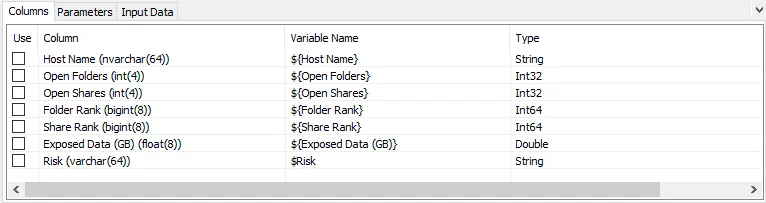
The table in the Columns tab displays the columns you can use for the PowerShell script. To use a Column, select the checkbox under the Use column.
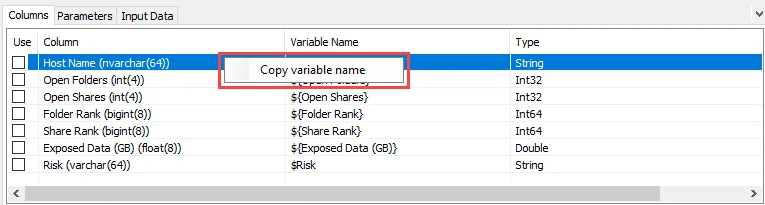
Right-clicking any of the variable names brings up a Copy variable name option that enables users to paste the variable name into the PowerShell script.
Parameters
The Parameters tab contains options to add, edit, or delete user-made PowerShell parameters.
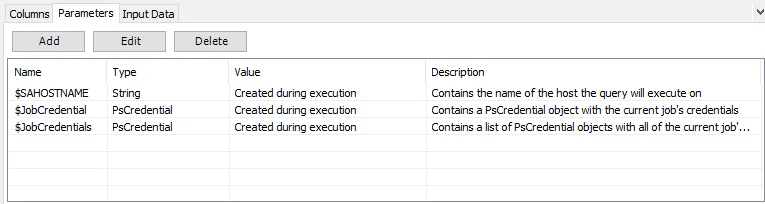
The options are:
-
Add – Clicking Add opens the Add/Edit Variable window. See the Add/Edit Variable Window topic for additional information.
-
Edit – Select an existing parameter and click Edit to open the Add/Edit Variable window. See the Add/Edit Variable Window topic for additional information.
- Double-clicking an existing parameter also opens the Add/Edit Variable window
-
Delete – Delete a selected parameter
You can't edit or delete the built-in default parameters.
Add/Edit Variable Window
Configure options for a new or existing parameter using the Add/Edit Variable window.

The options are:
-
Name – Enter or edit the name for the custom parameter
-
Description – Enter or edit the description for the custom parameter
-
Type – Select the Type from a dropdown list. The options are:
- String
- List
- Filepath
- Boolean
- Long
- Double
-
Value – Enter or edit the value for the custom parameter
Input Data
Preview how the input data will look in the Input Data tab.

Information in the Input Data tab varies depending on which source table the PowerShell action module is configured to pull data from.