Action Libraries
When creating a new action on a job, you can load action tasks preconfigured with table input, script body, and parameters. This helps you:
-
Perform operations that aren't available in the built-in action modules
-
Build custom action workflows to satisfy common use cases
-
Build custom remediation workflows, such as:
- PowerShell Script / Action Body
- Table references
- Parameters
On the job's Configure > Action node, the Add from Library option opens the Libraries window with the available Action Libraries and operations:
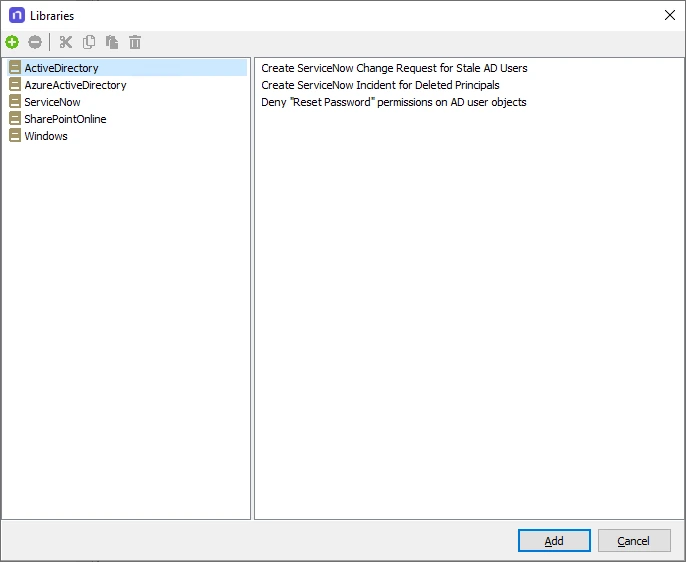
When you choose a specific operation within a library, the wizard adds the action to the job in the disabled state. The Action Properties page opens, which has a description, action module, and source table with relevant filters applied.
When you click the Configure Action link, the action module's wizard opens.
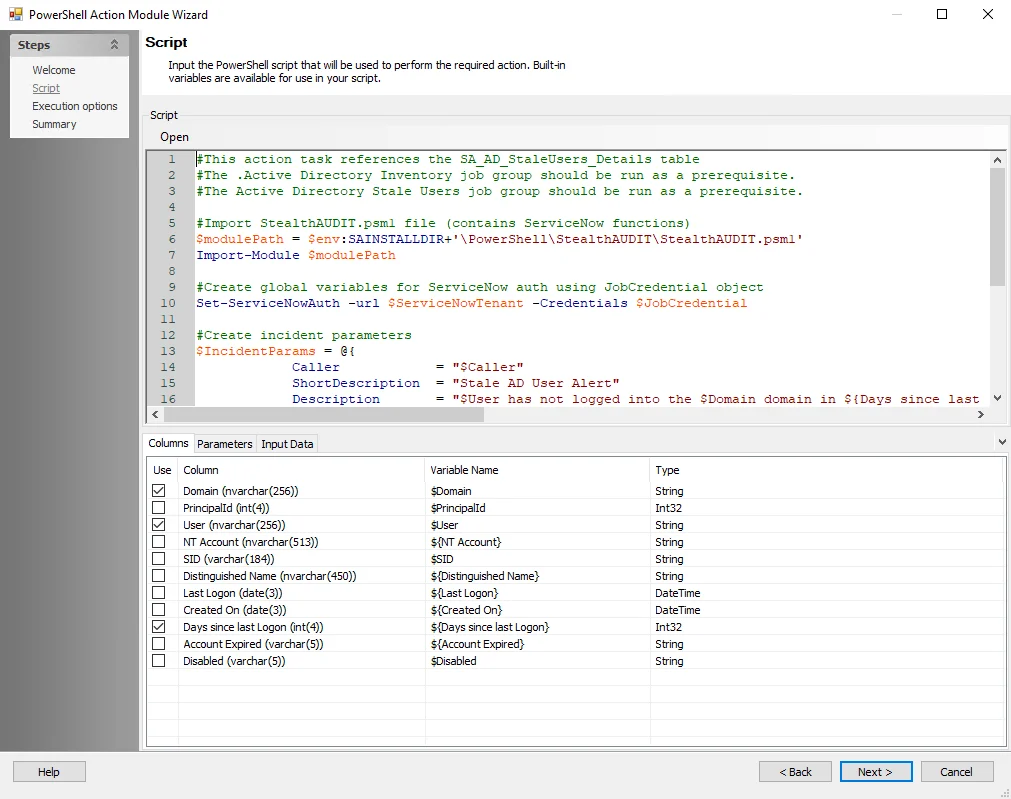
The following Action Libraries and Templates use the PowerShell Action module to run actions within the specific environment:
- Active Directory
- Azure Active Directory
- ServiceNow
- SharePoint Online
- Windows
The script comments include prerequisite information for each PowerShell script. Typically, a script requires necessary cmdlets available and installed, as well as parameter inputs configured.
Create a Custom Action Library
You can also create and maintain custom libraries of action tasks for easy reference and use. Once you configure an action task as desired, add it to an Action Library:
Step 1 – From within the Action Selections view where the custom action tasks exists, right-click and copy the task.
Step 2 – Click the Add from Library link to open the Libraries window.
Step 3 – Click the green plus sign on the top left to add a new library.
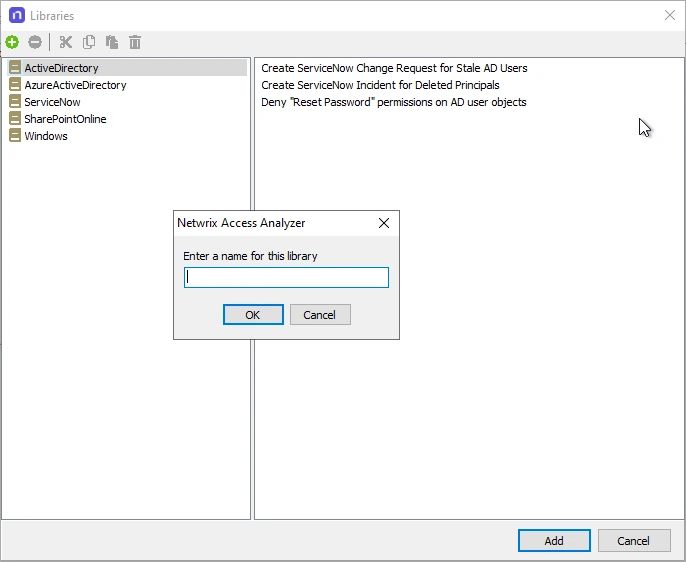
Step 4 – In the pop-up window, specify a name for the library and click OK.

Step 5 – Select the new library and paste the copied action task.
The custom action task is now available for use in other jobs through the Add from Library option.